Tasks
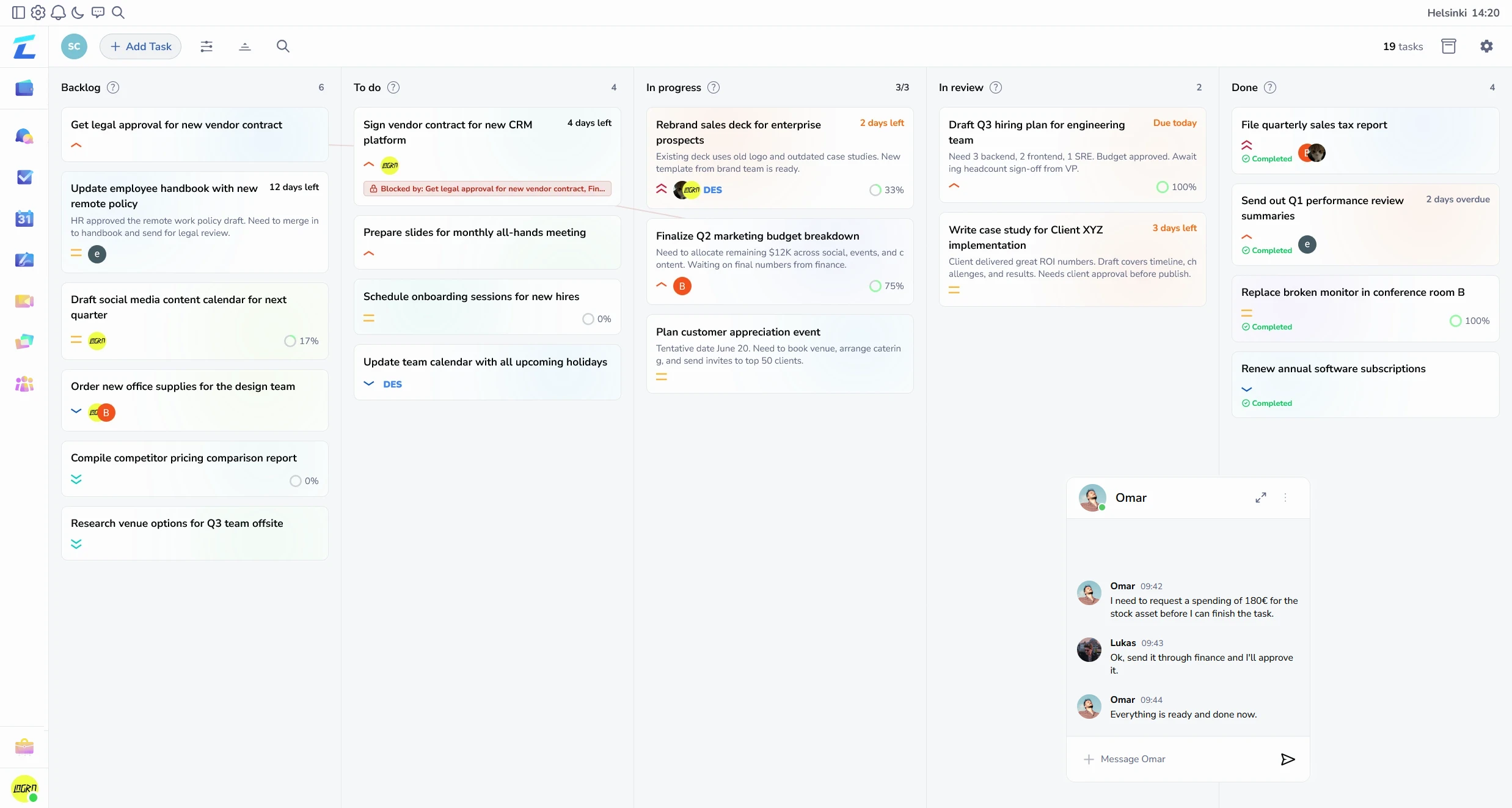
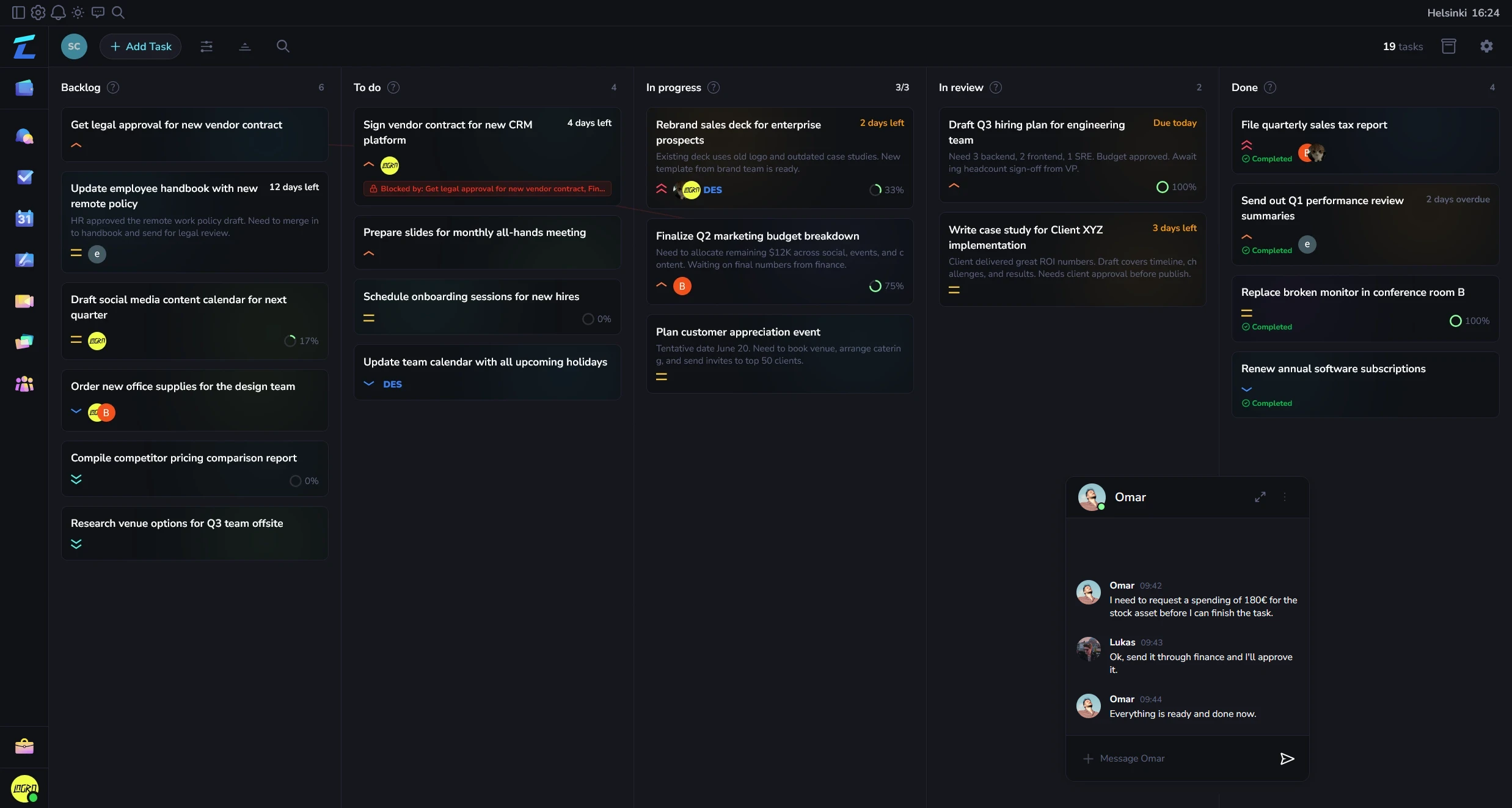
Organize work with a Kanban-style task board. Create tasks, assign them to team members, set priorities and deadlines, and track progress with drag-and-drop columns.
Open Tasks#
Click Tasks in the sidebar to open the task board.
Board Layout#
The board displays tasks in columns by status. Drag tasks between columns to update their status.
Create a Task#
- Click the Add Task button
- Fill in the task details:
- Title (required)
- Description
- Priority — Low, Medium, High, Critical
- Assignee — Select a team member
- Due Date
- Status — Column to place the task in
- Click Create
Edit a Task#
- Click a task card to open its detail view
- Edit any field
- Click Save to keep your changes
Drag and Drop#
- Drag a task card from one column to another to change its status
- A rotation animation shows during the drag preview
- All changes sync in real-time
Task Properties#
Priorities#
- Low (Grey) — Nice-to-have items
- Medium (Blue) — Standard work
- High (Orange) — Important tasks
- Critical (Red) — Urgent/blocking issues
Assignees#
Assign any workspace member to a task. They'll see the task in their list and receive a notification.
Due Dates#
Set a due date on any task. Overdue tasks are visually flagged.
Subtasks#
Break down tasks into smaller subtasks within the task detail view.
Dependencies#
Link tasks that depend on each other. Visual dependency lines connect related tasks on the board.
Filter and Search#
Use filters at the top of the board to narrow down tasks:
- Assignee — Show only tasks assigned to a specific member
- Priority — Filter by priority level
- Due date — Overdue, this week, this month
- Search — Text search across task titles and descriptions
Project Filtering#
If your workspace uses projects, switch between them with the project selector in the top bar. Each project has its own set of tasks.
Column Settings#
Customize columns via the column settings menu:
- Rename columns
- Reorder columns
- Add or remove status columns
Real-Time Updates#
All task changes sync instantly:
- New tasks appear immediately for all viewers
- Status changes (drag-and-drop) are live
- Assignments and edits propagate in real-time
- No page refresh needed
Permissions#
Access to tasks depends on your role's permissions:
- Create — Add new tasks
- Read — View task board and details
- Update — Edit existing tasks
- Delete — Remove tasks
- Admin — Manage columns and settings
See Roles & Permissions for details.